Home › Guides & Blog › How to Choose a Laptop
How to Choose a Laptop: A Plain-English Buying Checklist
What to decide before you shop for a laptop: Chromebook, Windows or Mac, screen size and weight, memory and storage, battery, ports and keyboard, plus a checklist for refurbished and used laptops and the scams to avoid.
Disclosure: This guide contains affiliate links. If you buy through them, ITS-ALL-HERE may earn a commission at no extra cost to you. We don't list prices because they change often; tap a link to see the current price on the seller's site. Learn more.
Laptop listings are full of model numbers and abbreviations, and two machines that look alike in photos can be very different to live with. This checklist covers the questions that actually matter, in plain English. We don't list prices or pick one exact model, because both change constantly. You'll find laptops, Chromebooks and used options together on our 💻 Tech & Gadgets page.
1. Start with what you'll use it for
Write down the three or four things you'll do most. That short list decides almost everything else.
- Email, web browsing, video calls, streaming and online forms: almost any current laptop or Chromebook can handle this.
- Office work, schoolwork and printing: check that the programs you need, and your printer, work with the system you pick.
- Photo or video editing, games, or special software for work or a hobby: look up that software's own requirements first, and shop for a machine that meets them.
2. Chromebook, Windows or Mac?
Chromebooks run Google's ChromeOS. They're built around the web browser, start quickly and update themselves. They suit browsing, email, video and schoolwork, but don't run regular Windows or Mac programs. Every Chromebook model also has an Auto Update Expiration date published by Google, after which it stops getting updates. Check that date before you buy, especially for an older or used model.
Windows laptops come from many makers in every size and run the widest range of programs. Make sure the laptop runs a version of Windows that still gets security updates. Microsoft ended regular support for Windows 10 in October 2025, so be careful with older machines that can't move to a newer version.
Macs are made by Apple and run macOS. They work smoothly with iPhones and iPads. Check that the software you rely on has a Mac version.
Chromebooks
Browse Chromebooks for school, browsing and everyday use. Check screen size, storage and whether a model has a keyboard that suits you, on the retailer's page.
Check the screen size, the storage and the Auto Update Expiration date for the exact model.

Windows Laptops
Browse Windows laptops for home, school and work. Compare screen size, memory, storage and processor notes on the retailer's page before you buy.
Compare screen size, memory, storage and the Windows version listed for each model.
3. Screen size and weight
Screen size is measured corner to corner. Smaller laptops are lighter and easier to carry; larger screens are easier on the eyes and leave room for a full keyboard, sometimes with a number pad. If you have trouble reading small text, a bigger screen is usually worth the extra weight. Check the listed weight if you'll carry it often.
4. Memory and storage, in plain terms
Memory (RAM) is the laptop's short-term workspace. More memory generally helps when you keep lots of browser tabs or programs open at once. Storage is where your files, photos and programs are kept. Solid-state storage (often listed as SSD) is generally much faster than older spinning hard drives. Chromebooks often have less built-in storage because they lean on online storage. If a program you need lists minimum requirements, make sure the laptop meets them with room to spare.
5. Battery life
Battery claims from makers are measured under their own test conditions, so real-world use with a bright screen and video is often shorter. Read current customer reviews for real-life reports. On a used laptop, batteries wear out with age, so ask the seller about battery condition and make sure a working charger is included.
6. Ports and connections
List what you need to plug in, such as a printer, flash drive, mouse, monitor or headphones, and check the listing's port list. Many newer, thinner laptops have fewer ports and use USB-C, so you may need an adapter.
7. The keyboard
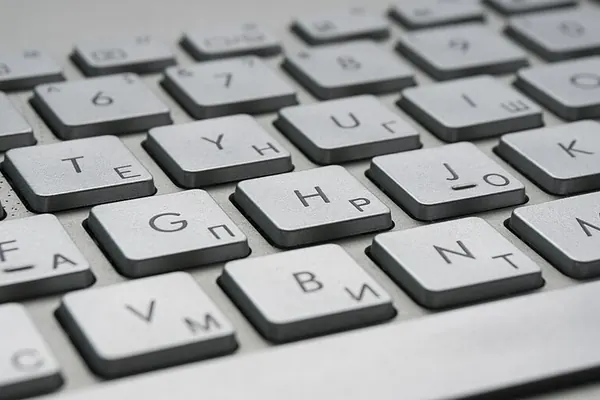
Chromebooks and Macs use different keyboard layouts from Windows laptops. A Chromebook has no Windows key and takes screenshots with a key combination instead of a PrtSc (Print Screen) key, and a Mac uses Command keys. If you're used to a Windows key or a PrtSc key, look closely at the keyboard photo. On many smaller Windows laptops PrtSc shares a key with another function. If the built-in keyboard isn't comfortable, a separate full-size keyboard and mouse can plug in at home.
Logitech MK270 Wireless Keyboard and Mouse Combo
A full-size wireless keyboard and mouse that share one tiny USB receiver. A dependable, no-fuss upgrade for any home desk.
Check the key layout in the listing photos if you rely on keys like Windows or PrtSc.
8. New vs. refurbished vs. used
- New laptops come with the maker's full warranty and the latest software, and usually cost the most.
- Refurbished laptops have been inspected and repaired by the maker or a seller. Read exactly who refurbished it, what was tested or replaced, and how long the warranty lasts.
- Used laptops are sold as-is by their owners or resellers. They can be good value, but the risk is on you, so the checklist below matters.
Whichever you pick, read the warranty and return policy before you pay: how many days you have to return it, who pays return shipping, and whether there's a restocking fee.

Laptops, Notebooks and Chromebooks
Browse laptops, notebooks and Chromebooks. Compare screen size, memory, storage and battery life on the retailer's page before you buy.
Use the retailer's filters for screen size, memory and storage, and read the return policy.
Refurbished laptops on Amazon →
9. Buying a used laptop on eBay: what to check
- Seller feedback: check the rating and recent comments.
- Condition: read the description word for word. "For parts or not working" means exactly that.
- Real photos of the actual laptop, including the screen turned on, the keyboard and any damage, not just stock pictures.
- Model and system details: the exact model, memory, storage and which operating system is installed.
- Locks: ask whether it's free of passwords, Apple's Activation Lock, or school or company management. A locked or managed laptop may be unusable.
- Battery and charger: ask about battery condition and whether the original charger is included.
- Returns and protection: check the seller's return policy, read eBay's Money Back Guarantee terms, and always pay through eBay checkout.
- When it arrives: test the screen, every key, the touchpad, Wi-Fi, camera, speakers, ports and charging right away, while you can still return it.

Refurbished and Used Laptops on eBay
Browse refurbished and used laptops, notebooks and Chromebooks on eBay. Read the condition notes, seller ratings and return policy carefully before you buy.
Read condition notes, seller feedback and the return policy on each listing.
10. Scams to avoid
- Prices that seem too good to be true, especially on brand-new, popular models.
- Sellers who ask you to pay outside the marketplace, or by gift card, wire transfer or payment apps. That usually removes your buyer protection.
- Listings that are only for the box, a photo or a "description" of a laptop, hidden in the fine print.
- Copycat store websites with strange web addresses. Type the store's address yourself instead of clicking a pop-up or a text message.
- Fake tech-support calls or pop-ups on a new laptop asking you to call a number or allow remote access. Close them and contact the maker through its official website.
After setup, see our Online Privacy Basics guide.
A quick laptop buying checklist
- List what you'll use it for and any must-have programs.
- Pick Chromebook, Windows or Mac, and confirm it still gets updates.
- Choose a screen size and weight you're comfortable with.
- Compare memory and storage against what your programs need.
- Check the ports, the charger and the keyboard layout.
- Decide on new, refurbished or used, and read the warranty and return policy.
- Buying used? Check feedback, real photos, locks and battery, and pay through the marketplace.
- Test everything as soon as it arrives.
The bottom line
The right laptop is the one that runs what you need, feels good to type on, and comes with a return policy you can count on. Browse laptops, Chromebooks, used options and accessories on our 💻 Tech & Gadgets page.
More from Guides & Blog
- Home Mobility & Bathroom Safety Checklist: What to Look For in Shower Chairs, Grab Bars, Rollators and More
- Road Trip & RV Essentials Checklist: What to Buy Before Your First Trip
- Winter Horse Care Checklist: Barn & Pasture Supplies to Buy Before the Cold
- Snow Blower Buying Guide: Single-Stage vs. Two-Stage, Gas vs. Battery
- Used Car & Pickup Truck Buying Checklist: What to Check Before You Buy
- Pet Care Essentials: A Buying Guide for Dog and Cat Owners
- Kitchen Essentials: Countertop Appliances and Tools Worth Owning
- Online Privacy Basics: VPNs, Password Managers and a Safer Smart Home
- How to Choose a Racing or Motorcycle Helmet
- Home Workout Essentials: How to Build a Simple Home Gym
- Carry-On & Flight Day Essentials: Pack Smarter for Any Trip